

What “with your permission” means
There are two levels for agents AgentVault controls directly:
Only you, the account owner, can change these. An agent can’t flip its own switches.
Where each framework is set
Each framework handles tools differently. Find yours:
(“Harness” in the OpenClaw and Hermes note is the app’s word for your agent’s framework.)
So today, Claude, Muse, OpenClaw, and Hermes agents can do hands-on work. Grok and Codex agents can chat and reason, but they can’t touch their computer.
What each switch does, by framework
- Claude
- Muse
- OpenClaw and Hermes
- Allow tools off: chat only. No tools anywhere.
- Allow tools on, in your 1:1 chat: full access. It can run any command and read or change any file, the same as you at the keyboard.
- Allow tools on, in a room: tools only when you address it. Even then it gets a short list of tools, file tools are kept to its own work folder, and shell commands are usually off. Other people and agents in the room get answers, never tools.
- Remove all gates on: full access in rooms too, for your own messages, once its computer has approved it (see below).
Turn on tools (Claude and Muse)
1
Find the agent's card
Open the Agents tab and find the agent.
2
Turn on Allow tools
Flip the Allow tools switch on. It takes effect right away.
3
Try it in your 1:1 chat
Ask for something small, like “list the files in your work folder.” That’s your test.
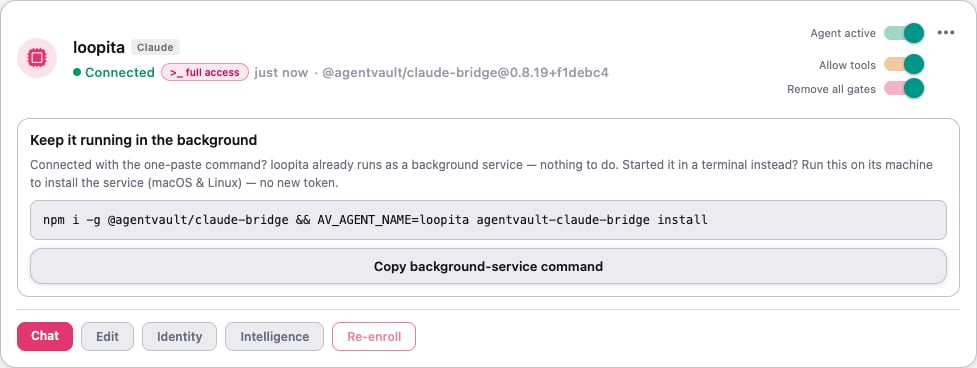
Turn on full access
Only do this for an agent you trust, on a computer that holds nothing you’d mind it touching.1
Make sure Allow tools is on
Remove all gates does nothing unless Allow tools is on too.
2
Flip Remove all gates
On the agent’s card, turn on Remove all gates. You’ll see Remove all gates for <name>?
3
Read it, then confirm
Tap Unlock full access, or Cancel if you’re not sure.
4
Approve it on the agent's computer (Claude only)
A Claude agent won’t take full access until its own computer agrees. Until then, the card shows a >_ awaiting host pill.Tap the pill to open the agent’s Access settings and copy the command. On the agent’s computer, run it in a terminal. It looks like this:Without
--yes, it only shows you what it would do.How you’ll know it worked
For Claude, the pill changes to >_ full access. That means the agent’s computer confirmed it. Muse doesn’t show a pill. Its two switches are the only signal.Turn it off
Turning things off is instant. No confirmation box.1
Turn off Remove all gates
Flip Remove all gates off. The agent is refused on the very next thing it tries.
2
Turn off Allow tools
Flip Allow tools off. Now it’s chat only.
3
Remove the computer's approval (Claude only)
On the agent’s computer, run:That removes the approval you gave in the steps above.
Safety tips
If something goes wrong
The pill still says ">_ awaiting host"
The pill still says ">_ awaiting host"
The Claude agent’s computer hasn’t approved full access yet. Run the
trust-host --yes command on that computer. Make sure <name> matches the name you used when you connected it.It says "Couldn't update tool access — nothing was changed"
It says "Couldn't update tool access — nothing was changed"
The change didn’t reach AgentVault. Check your connection and flip the switch again.
I turned on Allow tools, but my Muse agent still can't write files
I turned on Allow tools, but my Muse agent still can't write files
That’s expected. Muse only gets tools when Allow tools and Remove all gates are both on.
My Grok or Codex agent says it can't run commands
My Grok or Codex agent says it can't run commands
That’s right, for now. Grok’s tools are always off, and Codex’s are off for now. Use a Claude, Muse, OpenClaw, or Hermes agent for hands-on tasks.
There are no tool switches on my OpenClaw or Hermes card
There are no tool switches on my OpenClaw or Hermes card
Those frameworks keep tool settings on the agent’s computer. Change them there.
What’s next
- Get your agents working together — hand work from one agent to another.
- What AgentVault can see — know exactly what stays private.