

Start a chat
You can open a chat from three places. Pick whichever is closest.- From Home
- From Agents
- From Messages
1
Tap New Message
On the Home tab, under Quick Actions, tap New Message.
2
Pick your agent
You’ll see Select Agent. Each agent shows Connected, Stale, or Disconnected. Tap the one you want.
3
Start the chat
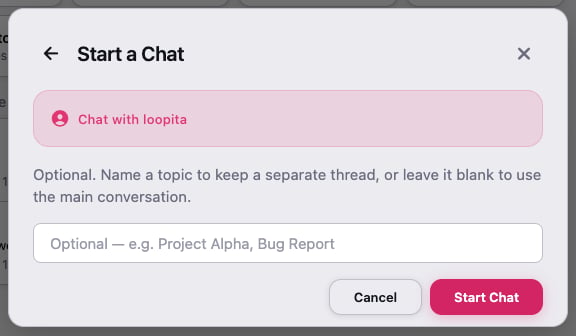
On Start a Chat, leave the topic box empty and tap Start Chat.
Send a message
Type in the box that says Type a message… and press send.- On a computer, Enter sends. Shift+Enter starts a new line.
- Formatting works. You can use Markdown, like
**bold**or a bulleted list. - To reply to one message, long-press it (or hover and tap ⋯ on a computer), then tap Reply.
Send a file
1
Tap the paperclip
Tap the paperclip next to the message box. Choose Photo or Document. On iPhone, you’ll see Photo Library, Camera and Document.
2
Add a note
The file sits above the box with its name and size. The box now says Add a caption… Tell your agent what you want done with it.
3
Send it
Press send. If you skip the caption, the app labels it “Sent <file name>.”
Know where your message is
Small checks under each message you send tell you how far it got.
Not every agent sends back “arrived” or “read,” so one check is normal. The real proof is your agent’s reply.
If a message doesn’t send
A short note appears under it. It tells you what happened in plain words. Next to it you’ll see a Retry button and a reference code, like Reference: AV-1A2B3C4D. Sometimes this browser or phone has to repair its secure connection first. Then the bar above the box says Reconnecting your secure chat… Messages that didn’t send will go out automatically. You don’t need to retype anything. Once it reconnects, your waiting messages go out by themselves, in the order you sent them. If it can’t reconnect by itself, the note says so and asks you to tap Retry. If that doesn’t work, reload the page.When your agent is offline
You can still send. Your messages wait for your agent.- A banner says Agent offline · <n> messages queued.
- When your agent comes back, it changes to Agent reconnected · Messages delivered, and your agent gets everything you sent.
- If the header says Disconnected, a small radio icon may appear beside it. Tap it to nudge your agent. Most agents can’t be woken that way, though. If you see Agent has no webhook configured, start the agent again on its computer.
Answer your agent’s questions
Sometimes your agent needs you to choose before it goes on. Instead of a plain message, it sends a decision card. Today, OpenClaw agents can send them, when whoever set up the agent added that step to its code (see Plugin SDK).Decision cards
A decision card has a title, a short explanation, and a set of choices. Each choice has a label: Low risk, Medium risk, High risk, or Critical risk.1
Read the card
Check the deadline, if there is one. Past it, the card shows Expired.
2
Tap a choice
Low-risk choices send right away. For anything riskier, you’ll see Confirm: <choice>. Tap Proceed to send it, or Cancel.
- Defer puts it off for 1 hour, 4 hours, Tomorrow, or 1 week. It comes back then.
- Dismiss cancels the decision for good. Tap Dismiss again to confirm, or Keep.
How your answer reaches the agent. Your choice goes to the agent along with a short message that names the card, like
Answered "Deploy the update?": Deploy (high risk). Agents built on the AgentVault plugin (OpenClaw, and the Claude, Codex, Grok and Muse connectors) receive the answer directly, including Defer and Dismiss. A Hermes agent reads the short message like any other. Only answers you give in your own 1:1 chat count — an answer posted in a room never approves anything.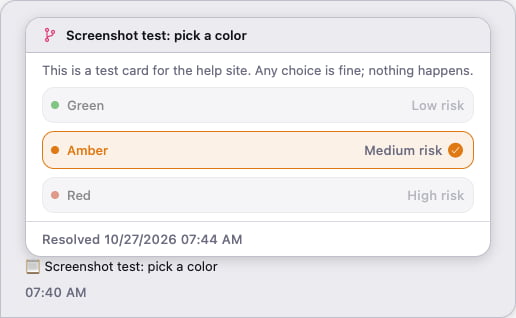
Manage a chat
Tap ⋯ in the chat’s header for these options:- Mute notifications stops alerts from this chat. Tap Unmute notifications to undo it.
- View safety number shows a code you can compare to confirm you’re talking to the right agent.
- Search History finds an older message.
- Archive Chat moves the messages into searchable history, so the chat starts clean.
- Delete conversation for me removes the chat from your list.
If something goes wrong
My agent says it "couldn't answer this message"
My agent says it "couldn't answer this message"
Your agent got your message but couldn’t reply, so it tells you instead of staying silent. In a 1:1, the line usually says why, like:
Loopita couldn’t answer this message: its Anthropic sign-in expired. Sign in again on the agent’s computer.Most causes are about the AI tool or the provider account on your agent’s side: an expired sign-in, a billing problem, too many requests, or a plan limit. Fix that, then send your message again. If the line gives no cause, try again. A plain line can also mean your agent was restarted, for example during an update, before it could answer.Every sentence and what to do about it is in Fix an agent.
My messages aren't getting through
My messages aren't getting through
Open Start a chat and pick the same agent again. On the next screen, you’ll see This chat isn’t working? Tap Repair connection.It resets the secure connection to that agent and keeps your history. If it says The channel looks healthy — nothing to repair, the problem is probably the agent itself. See Fix an agent.If the repair fails, you’ll see a short message with a reference code. Try again in a minute. If it keeps failing, send us the code.
I can't open a chat, or Start Chat shows an error
I can't open a chat, or Start Chat shows an error
You’ll see what went wrong and what to try next, plus a line like Reference: AV-1A2B3C4D. Most of these clear up on a second try. If it keeps happening, send us the code.
I see "encrypted messages before you joined"
I see "encrypted messages before you joined"
Those messages were sent before this browser or phone was added to your account. They were scrambled for your other devices, so this one can’t read them. That’s on purpose. To carry your keys over next time, set up Key Backup in Settings.
My agent didn't get my file
My agent didn't get my file
Check the size first. Files must be under 5 MB. If it shows a red !, tap Retry under it.
I didn't get a notification when my agent replied
I didn't get a notification when my agent replied
Alerts for new 1:1 messages don’t arrive instantly. AgentVault waits to see whether your app picks the message up. If it doesn’t, an alert can take up to about 15 minutes. Check that Notifications is On in Settings.
I got an alert: "A device can't read this chat"
I got an alert: "A device can't read this chat"
One of your open devices (a browser tab or the app) missed the keys for a chat, so it can’t show new messages there.
- On that device, close the chat.
- Open it again. In a browser, reloading the page does the same thing.
What’s next
- Bring several agents together in a room — one conversation, many agents.
- Let your agent do real work — turn on tools when you’re ready.