

Both upload a scrambled backup to AgentVault. Both are locked with a code that only you keep. AgentVault never gets the code.
Agent History Recovery
What it saves
Each agent keeps its own record of your 1:1 conversations with it. With history recovery on, the agent uploads a scrambled copy of its most recent messages, up to 500. It updates about a minute after new messages arrive. If the agent’s computer dies, you can move the agent to a new one and bring that history along. Without it, the agent starts the new computer with an empty memory of your chats.Set it up
1
Open Agent History Recovery
Go to Settings › Security › Agent History Recovery. It says Recovery is not configured.
2
Create your code
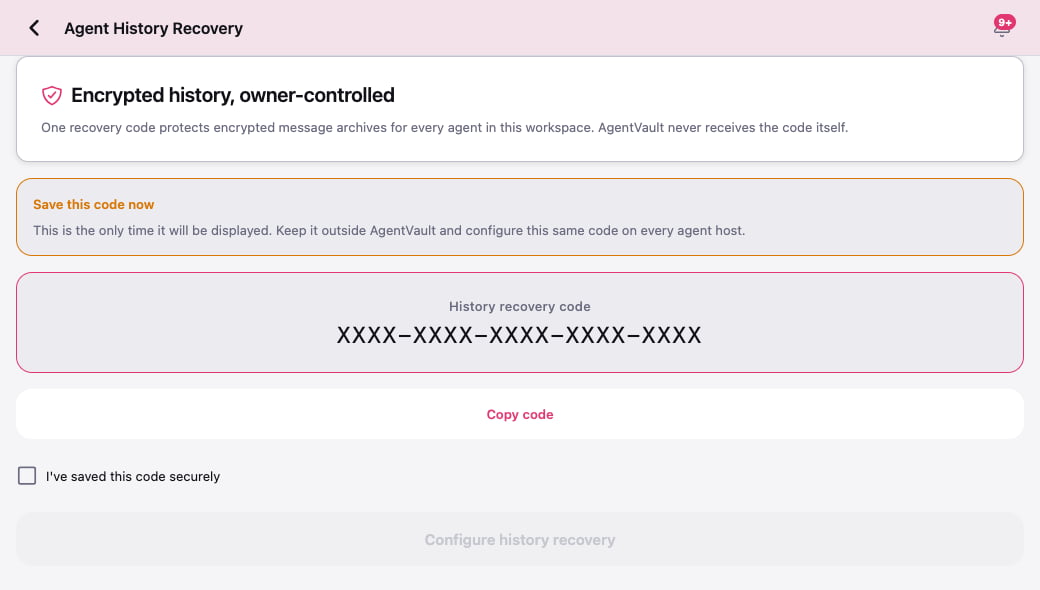
Tap Set up history recovery. You’ll see Save this code now. This is the only time the app shows it.
3
Save the code somewhere safe
Tap Copy code and paste it into your password manager. Then tick I’ve saved this code securely.
4
Turn it on
Tap Configure history recovery. You’ll see Configure this same code on every agent host.
5
Give the code to each agent
On each agent’s computer, open a terminal and run its command (see the tabs below). It asks for the code and hides what you type. Paste the code and press Enter.The code is never part of the command itself. That keeps it out of your terminal history.
6
Restart the agent
Restart each agent so it starts uploading. See the tabs below for how.
- OpenClaw
- Hermes
- Claude
- Codex
- Grok
- Muse
openclaw gateway restart<name> is your agent’s name. For OpenClaw, type it exactly as you did when you connected it. For the others, use lowercase. For Hermes, <profile> is usually the same name.
How you’ll know it worked
Back in Agent History Recovery, you’ll see Recovery is configured and <n> of <m> agents have uploaded encrypted history. In Settings, the row reads:Move an agent’s history to a new computer
1
Re-enroll the agent
On the agent’s card, tap Re-enroll, then Replace this machine. Check the history box says Encrypted history uploaded, then tap Yes, replace <name>. Fix an agent has the details.
2
Connect it on the new computer
Run the command the app gives you on the new computer. Then approve the new card on the Agents tab.
3
Run the history recovery command
Tap Copy history recovery command and run it on the new computer. Paste the same recovery code when it asks.
4
Restart the agent
Its history comes back when it starts.
Change your recovery code
Tap Reset recovery code in Agent History Recovery.Key Backup
What it saves
Every browser and phone you sign in on gets its own keys. A brand-new browser can’t read your older messages, because it never had the keys they were scrambled with. Key Backup uploads a scrambled copy of your keys, locked with a backup code. On a new browser or phone, you enter the code and your keys come back. After that, the backup refreshes itself about 30 seconds after your keys change.Set it up
1
Open Key Backup
Go to Settings › Security › Key Backup. It says Not set up.
2
Save your code
You’ll see Save this code now and Your Backup Code. Tap Copy to Clipboard and save it in your password manager.
3
Confirm and create
Tick I’ve saved my backup code in a safe place, then tap Create Backup.
4
Done
You’ll see Backup Created. Tap Done. The Key Backup row now says Active.
Restore your keys on a new browser or phone
1
Sign in
Sign in to app.agentvault.chat or the app. If a backup exists, you’ll see Encryption Keys Required.
2
Tap Restore from Backup
Enter your backup code and tap Restore Keys.
3
Continue
You’ll see Keys Restored. Tap Continue. Your conversations can be read on this device now.
What about Start Fresh? It gives this device new keys. New messages work fine, but older ones stay unreadable here. You’ll see a line like <n> encrypted messages before you joined in their place.
If something goes wrong
It says "No backup found for this account"
It says "No backup found for this account"
Key Backup was never set up, or it was replaced. Use Start Fresh, then set up Key Backup so it’s ready next time.
I lost my recovery code
I lost my recovery code
The old backups can’t be opened. Tap Reset recovery code to make a new one, give it to each agent, and restart them. That deletes the old backups, but they couldn’t be opened anyway.
An agent shows "Needs attention"
An agent shows "Needs attention"
It has new messages it hasn’t backed up for over 2 hours. Make sure it’s running. Then run its
recovery configure command again with your code, and restart it.The re-enroll screen says "No encrypted agent history is available"
The re-enroll screen says "No encrypted agent history is available"
That agent never uploaded a backup. New messages will work on the new computer, but its old history won’t come along.
What’s next
- Fix an agent that’s offline or broken — where history recovery pays off.
- Security overview — how your keys and messages are protected.